 Swift Environment Variable Editor
Swift Environment Variable Editor is a powerful, visual tool designed for developers who regularly manage large sets of Windows environment variables. It brings an editor-like workflow—similar to working in a text editor on macOS or Linux—to Windows, complete with syntax highlighting and comment support. The application supports multiple languages, offers command-line operations for scripting and automation, and automatically backs up environment variables before changes. This makes managing environment variables simpler, faster, and more efficient.
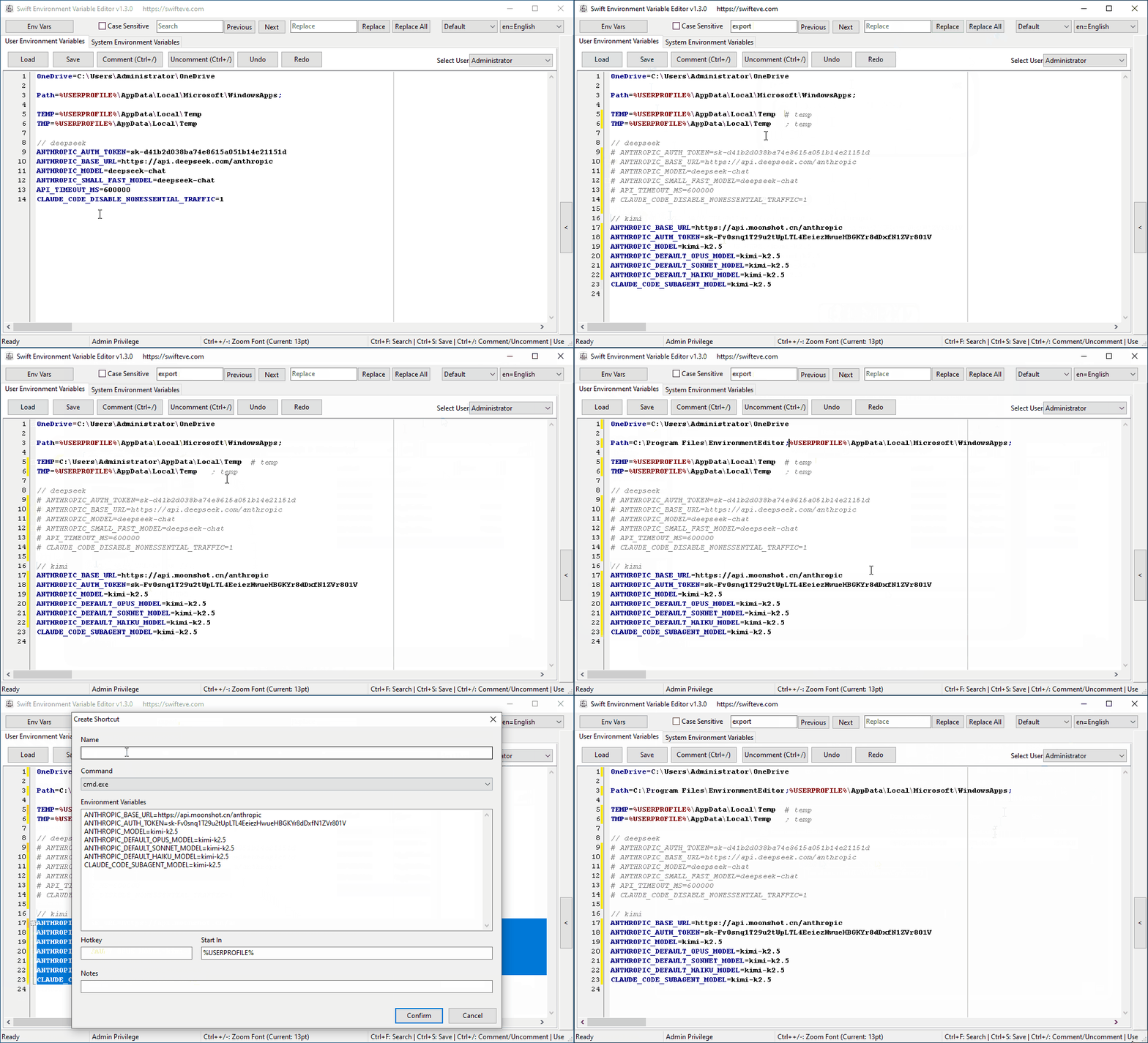
Swift Environment Variable Editor provides comprehensive Windows environment variable management. Key features include:
Main Features
- Edit user and system environment variables
- Comment support (use
#,;, or//to temporarily disable variables) - Syntax highlighting for clearer, more readable configuration
- Multi-user management
- Automatic privilege elevation when editing system variables
- Find and replace for fast updates
- Adjustable font size
- Intuitive, easy-to-use interface
- Switch between multiple languages in the interface for a localized experience
- Manage environment variables from the command line for scripting and automation
- Environment variables are backed up automatically before changes to keep your configuration safe
Command-Line Usage
Swift Environment Variable Editor can be run from the command line (cmd or PowerShell) for scripting and automation. With no parameters, it starts the graphical interface. Use the following options to get help or to set, insert, append, remove, or delete environment variables.
Help
EnvironmentEditor -HSet variable value
EnvironmentEditor -S [-C] [-E] [-U | -M] variableName newValueInsert value (prepend)
EnvironmentEditor -I [-C] [-E] [-U | -M] variableName valueAppend value
EnvironmentEditor -A [-C] [-E] [-U | -M] variableName valueRemove value
EnvironmentEditor -R [-C] [-U | -M] variableName valueDelete variable
EnvironmentEditor -D [-U | -M] variableNameOptions
-Sset value-Iinsert (prepend)-Aappend-Rremove one value from a list-Ddelete the variable-Ccleanup (remove duplicate paths and empty elements)-Ecreate as expandable if the variable does not exist-Uuser variables (default)-Msystem (machine) variables
Usage examples
Set a user variable (e.g. MY_APP_HOME) to a path:
EnvironmentEditor -S MY_APP_HOME C:\MyAppAppend a folder to the user PATH (and clean duplicates with -C):
EnvironmentEditor -A -C PATH C:\Tools\binInsert a path at the beginning of PATH (prepend):
EnvironmentEditor -I PATH D:\PriorityToolRemove one entry from PATH:
EnvironmentEditor -R -C PATH C:\OldTool\binDelete a variable (user scope by default):
EnvironmentEditor -D MY_APP_HOMESet a system variable (run cmd or PowerShell as Administrator):
EnvironmentEditor -S -M JAVA_HOME "C:\Program Files\Java\jdk-17"
Editing system variables (-M) may require running the command prompt or script as Administrator. Run EnvironmentEditor -H in a terminal to see the same help text.
Download Now
Choose the version for your system:
Supported operating systems: Windows XP, Windows Vista, Windows 7, Windows 8, Windows 8.1, Windows 10, Windows 11
Project Origin
Compared with macOS and Linux, Windows hides the entry point for editing environment variables several layers deep (for example: Settings → System → About → Advanced system settings → Environment Variables). When setting a large number of environment variables, you often have to copy the variable name, paste it, then copy the value and paste it. If you need to configure many environment variables—for example, three or four variables—you end up repeating the same add → copy/paste name → copy/paste value → save loop again and again. It’s unnecessarily time-consuming and frustrating—this is exactly why Swift Environment Variable Editor was born.
To address these pain points, we built Swift Environment Variable Editor. It provides a modern editing experience with syntax highlighting, comment support, and find-and-replace features—making environment variable management simple and efficient. We also added practical features like multi-user management and automatic privilege elevation for different scenarios.
We hope this tool helps developers and system administrators manage Windows environment variables more easily and improves productivity.
Support the Project
If you find this tool helpful, please consider supporting the project. Your support helps us continue to improve and maintain this software.
Changelog
- Command line: set, insert, append, remove, delete env vars (
-S,-I,-A,-R,-D);-Hhelp;-U/-Muser/system;-Ccleanup,-Eexpandable - Backup: automatic registry backup before saving environment variables
- Create Shortcut: create shortcuts (cmd, PowerShell) with environment pre-loaded
- Syntax highlighting: user-selectable style
- Paths: Open Folder / open in Explorer; path extraction; Ctrl+Click and Alt+Click on paths; long/short path conversion, expand/collapse env vars in paths
- Value editor: checklist for multi-value editing; move up/down; hover hints and double-click on checklist items
- UI: Open Environment Variables button; save-changes prompt when closing with unsaved content; tooltip caching; x64 build and app icon
- Editing: user and system environment variables with editor-style workflow
- Value editor: context menu (copy, cut, paste, undo, redo); insert directory path and file path
- Undo/redo: for user and system variable edits
- Tooltips: variable values on hover
- Syntax highlighting:
%VARNAME%, comments (#,;,//), and inline comments - Search and replace: Ctrl+S to save; keyboard shortcuts for search, save, and comment
- Font size: adjustment with config persistence and zoom shortcut hints
- Checks: required environment variables (user vs system)
- Languages and builds: multi-language support, x86/x64